
Build connected ThreadX devices in Lua, right from your browser. Xedge for ThreadX brings web interfaces, network services, and on-device application development to the NXP MIMXRT1020-EVK. Compile and install the firmware, then create and update Lua applications without rebuilding it for every change. Keep hardware drivers and time-sensitive work in C.
The project combines the Barracuda App Server (BAS) and Xedge with ThreadX, NetX Duo, FileX, and LevelX. It includes Ethernet, IPv4/IPv6, SharkSSL HTTPS, asynchronous sockets, UDP, MQTT, Modbus, OPC UA, Internet time synchronization, and writable onboard flash. No SD card is needed. MIMXRT1020-EVK is the supported board.
Use it to prototype a device web interface, connect industrial equipment, or evaluate Xedge as the application runtime for your own ThreadX product.
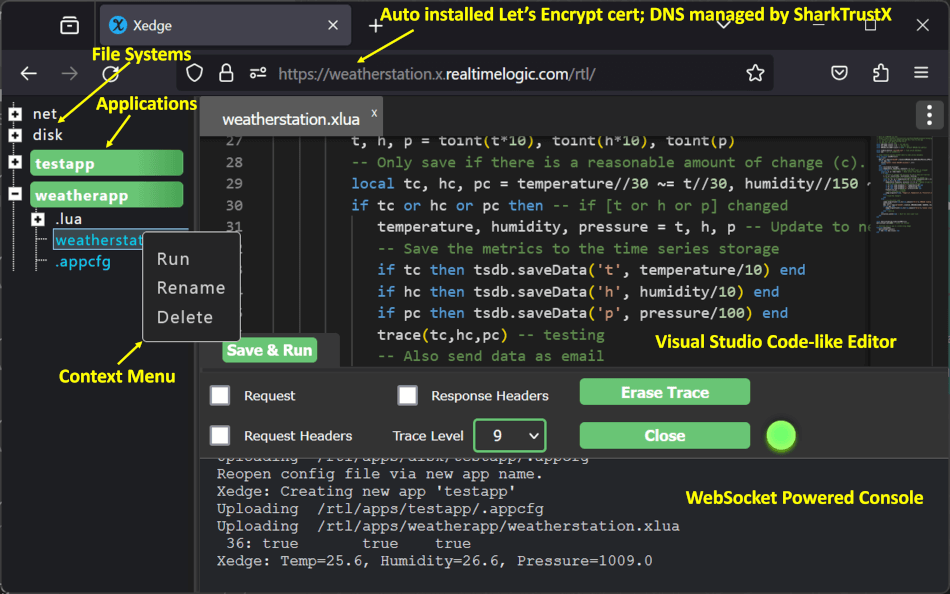
Edit and run Lua applications on the device from your browser.
-
Build the firmware with MCUXpresso IDE on Windows or an AI Agent, then connect and program the board.
-
Open Xedge in a browser on the same network.
-
Save and run a Lua application, then explore the Xedge development environment.
-
Set up trusted HTTPS for access to your device.
You will need the board, USB power and debug connections, and Ethernet with DHCP and DNS. Internet access is needed for the initial source download and the board's time synchronization. The complete IDE procedure is below.
For AI-assisted builds and porting to other boards, give your coding agent AGENTS.md. It provides a command-line workflow to get dependencies, build the firmware, program the board, and check startup without using the MCUXpresso GUI.
This port combines three layers:
- Barracuda App Server provides the embedded application server, Lua runtime, security, and networking services.
- Xedge adds the Lua application environment and browser-based development tools.
- The ThreadX port connects Xedge to NetX Duo networking and FileX storage. The RT1020 board project supplies hardware startup and drivers.
The application model is shared across Xedge ports. Board setup, hardware bindings, storage, and firmware builds belong to each target. Start in Lua, then extend the native integration as your product needs more hardware access.
The IDE procedure assumes MCUXpresso IDE is installed on Windows. Use IDE 25.06 (25.6.136) with its Arm GCC 14.2.1 compiler. The project downloads its SDK 26.09 firmware components separately from the IDE's board device-support package.
You also need Git for Windows and
Python 3.11 or newer. Make git
and python available on PATH, then restart the IDE if it was already open.
Internet access is needed for the initial dependency download.
Choose a persistent local development directory and a separate IDE workspace. Keep the checkout outside your temporary-files directory. For a new checkout, open PowerShell in your development directory:
# Include both source submodules; a GitHub source ZIP does not include them.
git clone --recurse-submodules https://github.com/RealTimeLogic/Xedge4ThreadX.git
cd Xedge4ThreadX
For an existing checkout, use its directory. Run these commands from the repository root:
# Initialize the recorded dependencies and prepare sources for IDE import.
git submodule update --init --recursive
python tools/setup_ide.py
Wait for setup to finish successfully before importing. It downloads and
verifies the SDK and RTOS sources into .deps, generates the embedded
Lua/web resources and prepares the board files. The initial download includes
a legacy NXP examples archive of about 1.6 GB; subsequent runs reuse the cache.
BAS/ contains the amalgamated runtime and matching ports; BAS-Resources/
contains the Lua and web sources. Keep their recorded revisions. Setup refuses
to overwrite changed SDK files or silently replace a mismatched submodule.
No SDK example import or manual resource copying is needed. The IDE regenerates
resources on subsequent builds. For debugging, the IDE also needs its RT1020
device-support package, as described next.
- Start MCUXpresso IDE and select a workspace outside this source directory.
In Installed SDKs, check that EVK-MIMXRT1020 is installed. If absent,
obtain the board's MCUXpresso IDE SDK from NXP's SDK builder and drag the
downloaded SDK archive into that view. The project records device-support
version 2.11.0. If the IDE offers a version-selection prompt, select
your installed RT1020 package. This package provides the IDE's chip/debug
metadata; firmware sources still come from the locked SDK 26.09 inputs
in
.deps. Do not replace this project's sources with an SDK example. - Select File > Import > General > Existing Projects into Workspace.
- Choose Select root directory, browse to
Xedge4ThreadX/ide/mcuxpresso/rt1020-evk, and select Xedge_RT1020. - Leave Copy projects into workspace unchecked. The project uses relative
links to the repository, its submodules and
.deps. - Click Finish and wait for indexing to finish. Select Xedge_RT1020 in Project Explorer.
Keep the supplied project settings. In particular, do not replace its linker script or memory layout with defaults from a new-project wizard.
Right-click Xedge_RT1020, select Build Configurations > Set Active >
Debug, then Build Project. Debug is the supplied default configuration.
It uses -Og -g3, with assertions enabled, for source-level debugging.
The build console should end with Build Finished. 0 errors. The supplied toolchain reports four newlib syscall warnings and one RWX segment warning. Review other diagnostics before programming; a failed build can leave a previous binary in the output directory.
The project's Debug directory contains:
| File | Purpose |
|---|---|
xedge.elf |
Firmware with symbols for programming and source debugging. Select this file in the IDE. |
xedge.bin |
Raw firmware image for command-line programming. |
xedge.map |
Linker memory and symbol report. |
linker.log |
Unmodified linker diagnostics. |
Use Project > Clean followed by Build Project when you need a full
rebuild. If you delete the entire Debug directory outside the IDE, rerun
python tools/setup_ide.py before refreshing the project so the generated
source links exist when the IDE scans them.
With board power disconnected:
- Set SW8 switches 1-4 to OFF/OFF/ON/OFF for booting from QSPI flash.
- For the two-cable power setup, set J1 pins 3-4, connect processor USB J9 for power and debug USB J23 to your PC with a data-capable cable. Alternatively, J1 pins 5-6 select J23 as the single-cable power/debug source. Check the markings for your board revision before changing jumpers.
- Connect Ethernet to a router or switch providing DHCP and DNS. Internet access allows the board to set its clock for TLS client connections.
In Windows Device Manager, expand Ports (COM & LPT) and identify the board's serial port. In MCUXpresso, select Window > Show View > Other > Terminal. In that view, click Open a Terminal, choose Serial Terminal, select the board's port and use 115200 baud, 8 data bits, no parity, 1 stop bit, no flow control. Close any other program using that port.
Application messages appear in this serial Terminal, separately from the build/debug Console. Keep the terminal open while programming and starting the board.
Use the board's onboard CMSIS-DAP debug probe through J23. The project
selects chip MIMXRT1021xxxxx and flash driver
MIMXRT1020-EVK_IS25LP064.cfx, supplied with LinkServer for the EVK's
IS25LP064 flash. Keep this selection in the project's flash-memory region.
The project includes Xedge_RT1020 Debug.launch, with no computer path or
probe serial number. Use this supplied configuration:
- In Project Explorer, double-click Xedge_RT1020 Debug.launch, or open Run > Debug Configurations... and select Xedge_RT1020 Debug under C/C++ (NXP Semiconductors) MCU Application.
- On Main, check project Xedge_RT1020, application
Debug/xedge.elfand build configuration Debug. The.elfextension is intentional. - On LinkServer Debugger, open Debug Connection. The supplied
settings use SWD, Attach only: false,
Semihosting support: Off, Reset handling: SYSRESETREQ and an empty
Reset script. Its Connect script is NXP's
RT1020_connect.scp. UART output uses the serial Terminal. System reset lets ROM initialize SDRAM before C startup. - On Startup, the supplied initialization and run commands should already
be populated, with the initial breakpoint at
main. Keep these commands; they connect GDB to LinkServer before loading the image. No manual command entry or fixed probe identity is required. The supplied source-path commands also let GDB locate files after moving or cloning the checkout. - Click Debug, and select the onboard CMSIS-DAP probe when prompted.
Allow programming to complete. Execution should stop at
main()inXedgeStartup.c. - Press F8, or select Run > Resume, to start Xedge.
For a first source-debugging check, you can press F6 (Step Over) once at
main before pressing F8. End a debug session with Terminate in the Debug
view. To start the application independently of the debugger, press the
board's reset button after termination, then watch the serial terminal.
Select Xedge_RT1020 Debug explicitly if the debug toolbar points to another launch configuration. After changing project metadata, select Close Project then Open Project so the IDE reloads its SDK association.
If connection fails, select the LinkServer process in the Console view's
console selector and retain its first error. The GDB banner and UART Terminal
are separate outputs. Check that the RT1020 package appears in Installed SDKs
and that Main selects Debug/xedge.elf. An incomplete device association can
prevent the IDE from constructing the debug-server command. Do not change
firmware code or erase the board to remedy a failure to connect to the local
GDB server.
Use normal image programming. Do not select Erase Flash, Mass erase
or Program (mass erase first) for an update: these can erase saved
applications and certificate configuration. Firmware occupies
0x60000000 through 0x603fffff; FileX data occupies 0x60400000 through
0x607fffff. The linker enforces the firmware boundary.
These menu names and launch settings follow the MCUXpresso IDE 25.06 User Guide, sections 14.1-14.2 and 22.8. The supplied launch has portable settings; the IDE discovers your probe locally.
After Resume, watch the serial terminal for these markers. The IP address and timestamps depend on your network; the order of time messages can vary.
FILEX_READY physical=4194304 bytes, LevelX wear leveling
Waiting for Ethernet and DHCP...
XEDGE_IPV4=<address assigned by your router>
XEDGE_THREADX_READY heap=25165824 async=1 udp=1 IPv6=1 FileX=1
SNTP UTC=<Unix time>
SNTP_EVENT UTC=<Unix time>
Open http://ADDRESS/rtl/, replacing ADDRESS with XEDGE_IPV4. Keep the
processor running: a breakpoint pauses the network stack as well as your C
code. The browser and the board must be on a network that permits access
between them.
SNTP UTC means Internet time was acquired; SNTP_EVENT UTC means Xedge
received the time event. Client TLS needs the correct time. If the network
blocks UDP port 123, the board keeps retrying and prints SNTP_RETRY.
Follow Using Xedge to create, save, run, and debug Lua or LSP applications. The same browser workflow applies to every Xedge port.
On this target, save applications in disk to keep them in FileX. Enable Auto Start for applications that should run after a reset. End the MCUXpresso debug session before resetting the board, then read its current IP address from the serial terminal and reconnect. Saved files and application settings remain in FileX when its partition is preserved.
Save your browser edits and keep a separate copy of any application files you
need before updating. End the current debug session. If changing repository
revisions, preserve local edits, initialize that revision's recorded
submodules, and rerun python tools/setup_ide.py. Refresh the IDE project,
then Clean, Build Project, and use Xedge_RT1020 Debug to program
the new Debug/xedge.elf. Resume with F8 and read the current DHCP address.
Normal image programming targets the lower 4 MiB firmware partition. Keep the supplied memory layout and use no mass-erase option. Check your saved application after the update. If startup reports that it is formatting FileX, the existing filesystem did not mount and its contents will be lost.
Board settings are in boards/rt1020-evk/config. The supplied profile includes IPv4/IPv6, asynchronous Lua sockets and cosockets, UDP, OPC UA, native mDNS, softTPM, and FileX storage.
- Application-server features:
BaConfigOpts.hsupplies BAS overrides. - Networking:
nx_user.hconfigures NetX Duo. Build NetX, BAS, and the application with the same options; they affect native object layouts. - Kernel and storage:
tx_user.h,fx_user.h, andlx_user.hconfigure ThreadX, FileX, and LevelX.
Rebuild the firmware after changing native settings. The built-in Lua resources must match the C features; tools/resources.py selects OPC UA and native softTPM for this profile. Ordinary Lua application changes can be saved directly through the browser.
Start with the introduction to automatic certificate management for the public and private trust options. Then follow the Xedge certificate manual to configure SharkTrustX or SharkCA. The manual covers enrollment, renewal, portal credentials, and browser trust.
For IDE users and access control, follow the Xedge authentication and configuration guide.
Xedge's multicast DNS (mDNS) support is primarily for SharkCA's local HTTPS names. SharkCA issues the certificate; mDNS lets a browser find the device by its assigned .local name. Xedge manages that registration automatically. Connecting computers must also trust the zone's device CA root; resolving a name alone does not establish HTTPS trust.
Use the SharkCA user manual for portal and trust setup. Application-managed names are an optional use of the mDNS Lua API.
The supplied ThreadX profile enables native NetX IPv4/IPv6 mDNS and the ba.createmdns API used by SharkCA. Preserve its mDNS, UDP, and multicast settings when adapting the network configuration. Let Xedge manage the certificate's hostname; applications do not need to create a responder for it.
This port uses softTPM with native SharkSSL for device identity and TLS.
The Lua Trusted Platform Module API, ba.tpm
lets applications use named keys for signing, certificates, and encryption-key
derivation. softTPM derives
private keys when needed, so applications do not need to manage private-key
files or a separate TPM chip. The supplied RT1020 profile has no PSA backend.
Board startup contributes the RT1020 silicon identifier to key derivation and seeds SharkSSL with 48 bytes from NXP's hardware random-number generator. The identifier distinguishes devices; it is public, not a secret or a hardware-isolated key. Protect the product secret and firmware as part of your device's security design.
Before production, replace the example product secret. The BAS Xedge host
ships with example key material.
Supply your own generated header through XEDGE_SOFTTPM_KEY_HEADER, as described
in the BAS build guide. Changing that secret
changes derived keys, so plan migration of device identities and encrypted data.
Save applications through Xedge's browser interface to keep them in onboard FileX storage. The upper 4 MiB of QSPI flash holds application files and configuration; the lower 4 MiB holds firmware. LevelX manages flash wear. Normal mounts retain saved files, and Auto Start applications run at startup.
The built-in Xedge UI and Lua libraries come from BAS-Resources and are
generated during the firmware build. Edit their source inputs when preparing
embedded resources; generated files belong in build output.
If FileX cannot mount, this evaluation startup erases and formats its data partition. Choose a recovery policy for your product and keep backups before updates. Heavy concurrent flash writes can delay requests and cause timeouts; the supplied profile is intended for normal interactive use.
Use this board project as a starting point for a ThreadX product with local control, connected services, or a device web interface. Add application behavior in Lua and extend the native firmware for hardware access. Lua complements C and lets you update application logic independently of the firmware build.
For shared host options and production integration, see the standalone Xedge build guide.
Edit board startup in
boards/rt1020-evk/XedgeStartup.c, not its
generated copy under Debug/boards. It contains main, ThreadX/network/time
startup, xedgeInitDiskIo for the FileX mount, and xedgeOpenAUX for native
Lua integration. Preserve the existing identity and time-event initialization
when extending the AUX hook. See the
Lua/C bindings guide
for registration and asynchronous callback patterns.
When adapting the project to another board, preserve IPv4/IPv6 clients and servers, blocking and asynchronous sockets, cosockets, TLS, WebSockets, UDP, and DNS/mDNS. The stack and Ethernet driver must handle chained NetX packets, partial writes, timeouts and cancellation. Serving the editor alone does not establish full socket compatibility. Configure access control before exposing the device beyond your evaluation network.
| Symptom | Action |
|---|---|
python or git is not found |
Fix PATH and restart MCUXpresso so it receives the updated environment. |
Missing source links or .deps inputs |
Run python tools/setup_ide.py from the repository root, then refresh the project. |
| Submodule revision or SDK file differs | Inspect and preserve your edits. Do not force-reset dependencies to bypass the check. |
| Project already exists in the workspace | Use the existing imported project if its location is this checkout, or choose a new workspace. |
| No debug probe, or a probe is busy | Check power and the J23 data cable; end other IDE/pyOCD debug sessions. A serial port alone does not prove the processor is powered. |
StubMonSemihost, or GDB cannot connect to localhost |
Use the supplied Debug launch and installed RT1020 device support. Retain the LinkServer console error. These messages alone do not establish a firmware crash or a problem with the checkout drive. |
Debugger stops in startup or fails before main |
Verify Debug ELF, RT1020 flash driver and SYSRESETREQ settings. Retain the LinkServer Console error instead of using mass erase as a first remedy. |
Ef(34): Timed-out initializing flash |
Check Properties > C/C++ Build > MCU settings, then the BOARD_FLASH region's flash-driver selection. Use MIMXRT1020-EVK_IS25LP064.cfx. A global launch override does not replace this per-region setting. |
Source not found at main |
Use the supplied Debug launch with its source-path initialization commands and project working directory. |
| No serial output | Check the Terminal port/settings and press F8 if the debugger is paused. |
Still waiting for DHCP |
Check the Ethernet link and DHCP service. |
SNTP_RETRY and TLS client failures |
Check DNS and outbound UDP port 123. Wait for SNTP UTC before relying on time-dependent TLS connections. |
| Browser stops responding while debugging | Resume execution; avoid breakpoints during flash writes. |
For browser IDE behavior, see Using Xedge.
Xedge brings the same browser-based Lua and LSP development workflow to several embedded platforms. Explore the port that fits your hardware and RTOS.
- Xedge32: Xedge for ESP32 devices.
- Xedge for Zephyr: Xedge for the Zephyr RTOS.
- Xedge for FreeRTOS: Ready-to-run project for the NXP i.MX RT1020 evaluation board.
- Xedge for NuttX: Example and build instructions in the Apache NuttX documentation.
- Generic Xedge port: BAS build instructions for integrating Xedge with your own RTOS target.
See this repository's LICENSE, the BAS license, and the BAS-Resources license. Other dependencies retain their own licenses and notices.
The third-party notices describe ownership and the board's driver and linker adaptations.
This distribution includes cryptographic software. The country in which you currently reside may have restrictions on the import, possession, use, and/or re-export to another country, of encryption software. BEFORE using any encryption software, please check your country's laws, regulations and policies concerning the import, possession, or use, and re-export of encryption software, to see if this is permitted. See https://www.wassenaar.org/ for more information.
The U.S. Government Department of Commerce, Bureau of Industry and Security (BIS), has classified this software as Export Commodity Control Number (ECCN) 5D002.C.1, which includes information security software using or performing cryptographic functions with asymmetric algorithms. The form and manner of this distribution makes it eligible for export under the License Exception ENC Technology Software Unrestricted (TSU) exception (see the BIS Export Administration Regulations, Section 740.13) for both object code and source code.
The following page provides details on the included cryptographic software: https://github.com/RealTimeLogic/SharkSSL